Stdout, Stderr, and Exit Codes
An important piece of interop between rsh and external commands is working with the standard streams of data coming from the external.
The first of these important streams is stdout.
Stdout
Stdout is the way that most external apps will send data into the pipeline or to the screen. Data sent by an external app to its stdout is received by rsh by default if it's part of a pipeline:
> external | str join
The above would call the external named
external and would redirect the stdout output
stream into the pipeline. With this redirection, rsh can then
pass the data to the next command in the pipeline, here
str join.
Without the pipeline, rsh will not do any redirection, allowing it to print directly to the screen.
Stderr
Another common stream that external applications often use to print error messages is stderr. By default, rsh does not do any redirection of stderr, which means that by default it will print to the screen.
You can force rsh to do a redirection by using
do { ... } | complete. For example, if we wanted to
call the external above and redirect its stderr, we would write:
> do { external } | complete
Exit code
Finally, external commands have an "exit code". These codes help give a hint to the caller whether the command ran successfully.
rsh tracks the last exit code of the recently completed external
in one of two ways. The first way is with the
LAST_EXIT_CODE environment variable.
> do { external }
> $env.LAST_EXIT_CODE
The second uses a command called
complete.
Using the
complete
command
The
complete
command allows you to run an external to completion, and gather
the stdout, stderr, and exit code together in one record.
If we try to run the external cat on a file that
doesn't exist, we can see what
complete
does with the streams, including the redirected stderr:
> do { cat unknown.txt } | complete
╭───────────┬─────────────────────────────────────────────╮
│ stdout    │                                             │
│ stderr    │ cat: unknown.txt: No such file or directory │
│ exit_code │ 1                                           │
╰───────────┴─────────────────────────────────────────────╯
echo, print, and
log commands
The
echo
command is mainly for pipes. It returns its arguments,
ignoring the piped-in value. There is usually little reason to
use this over just writing the values as-is.
In contrast, the
print
command prints the given values to stdout as plain text. It can
be used to write to standard error output, as well. Unlike
echo, this command does not return any value (print | describe
will return "nothing"). Since this command has no
output, there is no point in piping it with other commands.
The standard library has commands to write out messages in different logging levels. For example:
use std log

def main [] {
    log debug "Debug message"
    log info "Info message"
    log warning "Warning message"
    log error "Error message"
    log critical "Critical message"
}
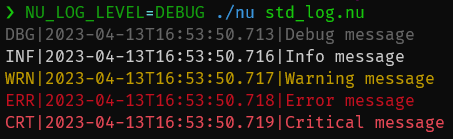
The log level for output can be set with the
rsh_LOG_LEVEL environment variable:
rsh_LOG_LEVEL=DEBUG rsh std_log.rsh
Using out>, err> to redirect
stdout and stderr to files
If you want to redirect output to file, you can just type something like this:
cat unknown.txt out> out.log err> err.log
If you want to redirect both stdout and stderr to the same file, just type something like this:
cat unknown.txt out+err> log.log
Raw streams
Both stdout and stderr are represented as "raw streams" inside of rsh. These are streams of bytes rather than structured data, which are what internal rsh commands use.
Because streams of bytes can be difficult to work with, especially given how common it is to use output as if it was text data, rsh attempts to convert raw streams into text data. This allows other commands to pull on the output of external commands and receive strings they can further process.
rsh attempts to convert to text using UTF-8. If at any time the conversion fails, the rest of the stream is assumed to always be bytes.
If you want more control over the decoding of the byte stream,
you can use the
decode
command. The
decode
command can be inserted into the pipeline after the external, or
other raw stream-creating command, and will handle decoding the
bytes based on the argument you give decode. For example, you
could decode shift-jis text this way:
> 0x[8a 4c] | decode shift-jis
貝